
How to Optimize Your Business Listing to Get More Customers
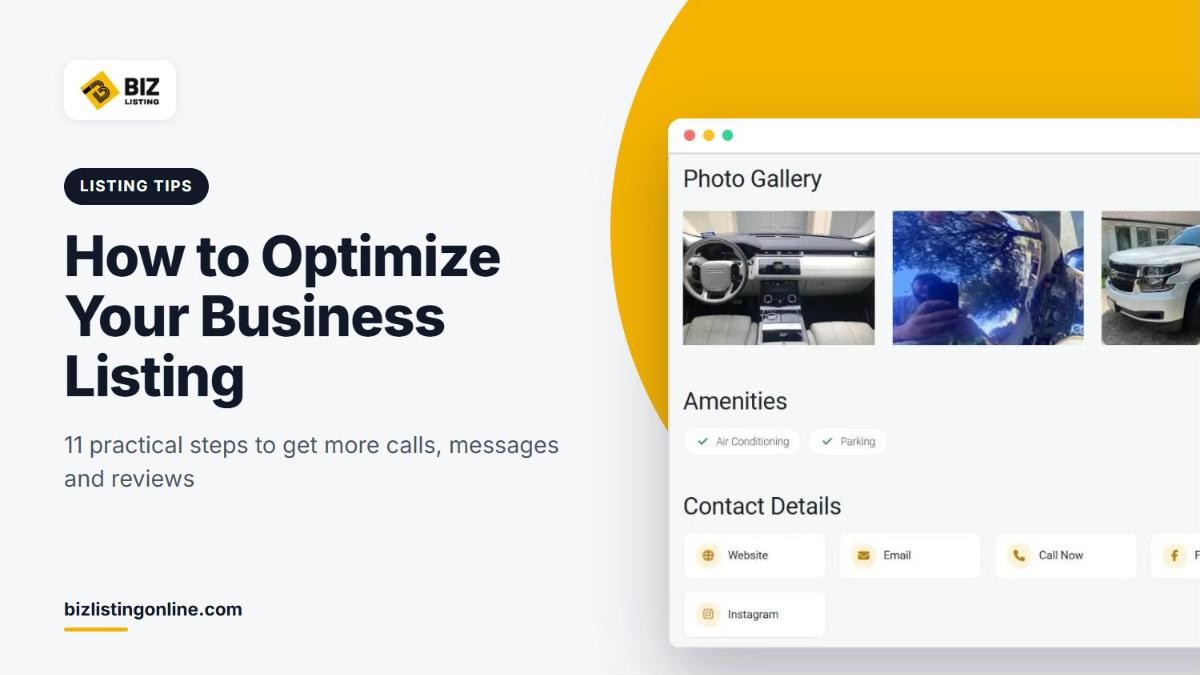
A listing that shows only a business name and a phone number is easy to skip. Customers choose the business that answers their questions, shows real work and has recent reviews. This guide explains how to optimize your business listing on Biz Listing Online so it ranks higher in our results and turns more visitors into calls, messages and visits.
The steps below follow what the directory rewards. Complete profiles with photos, opening hours and reviews rank higher in Biz Listing Online search results, so every section you fill in works in your favor.
If you have not created your listing yet, start with our guide on how to list your business for free.
Start by finishing your full profile
Many owners use quick add to get listed fast. Quick add covers the essentials: name, category, location and contact details. A full profile adds a detailed description, opening hours, gallery photos, amenities, social links, video and offers.
To complete your profile, sign in, open View All Listings in your dashboard and click Edit next to your listing. The listing form has eight steps. Work through each one using the tips below.
1. Choose the right main category
The first category you select is your main category. It decides how search engines classify your business and where you appear in our category pages.
- Choose the most specific category that matches your core service. A plumber should choose Plumbing Services rather than a broad parent category.
- Add extra categories only for services you actually provide.
- Check the full category list to see where competitors in your field are listed.
2. Write a description that answers customer questions
Your description is your sales pitch. The listing form asks for unique content and shows a word count, because copied text helps no one. A useful description covers:
- What you do: your main services, named the way customers search for them
- Who you serve: homeowners, businesses, property managers and so on
- Where you work: your city and the nearby areas you cover
- Why customers choose you: experience, licenses, warranties, response times or specialties
- How to get started: call, send a message or book an estimate
Here is a simple structure you can adapt:
[Business name] provides [main services] for [type of customer] in [city] and nearby areas, including [areas]. We specialize in [two or three key services]. [One sentence of proof, such as years in business or certifications.] Call us or send a message through this page to book [service].
Write in plain language and mention your services and locations naturally. Repeating keywords over and over makes the text harder to read and does not help your listing.
3. Add a logo and real photos
Photos are often the first thing a visitor looks at. A listing with clear images of real work looks more trustworthy than one with no images or stock photos.
- Upload a square logo of at least 300 x 300 pixels.
- Add landscape photos at least 1200 pixels wide.
- Use JPG, PNG, GIF or WebP files.
- Show completed jobs, your premises, your team or your vehicles.
- Upload only images you own or have permission to use.
- Add a short YouTube or Vimeo video if you have one.

Real photos, amenities and complete contact details make a listing more useful to customers.
4. Keep your contact details complete and consistent
Fill in your phone number, email, website and social media links. Then check that your business name, address and phone number match what appears on your website and other profiles. Consistent details help customers reach you and help search engines trust your information.
In the Location step, set your exact position on the map so the Directions button sends customers to the right place.
5. Set accurate opening hours
Your listing shows whether you are open right now, and visitors can filter search results with the Open now option. In the Timings step, tick Open for each day you are open and enter your opening and closing times. Leave both time fields blank for days you are closed. Update your hours before holidays or seasonal changes, because few things lose a customer faster than arriving at a closed door.

Set your opening hours for each day in the Timings step.
6. Select amenities and add offers
In the Amenities step, tick every feature that applies, such as Wi-Fi access, parking or air conditioning. Visitors can filter search results by amenity, so this helps the right people find you.
In the Offers step, add a current promotion, such as a discount for first-time customers or a seasonal service package. An offer gives visitors a clear reason to contact you now.
7. Complete the SEO fields
The SEO step lets you set how your listing page appears in search results.

The SEO step controls how your listing page appears in search results.
- Meta title: Use your business name, main service and city. Aim for 50 to 60 characters. For example: "Smith Plumbing | Emergency Plumber in Austin, TX".
- Meta description: Write one or two sentences, around 150 characters, that say what you offer and where. Include a reason to click, such as same-day service or free estimates.
- Keywords: List your main services and locations.
- Markup schema: If you or your web developer have LocalBusiness JSON-LD markup, you can add it here. If not, leave this field empty.
8. Collect reviews the right way
Reviews are one of the strongest signals a customer sees. The best time to ask is right after you finish a job and the customer is happy.
- Send customers a direct link to your listing page.
- Let them know they need a free account and that reviews must be at least 40 characters.
- Ask them to describe the service they received, as specific reviews help future customers most.

Customers sign in to leave a review. Reviews must be at least 40 characters and cannot include links.
Follow the review guidelines. Reviews written by the owner, staff or family, or given in exchange for payment or a discount, are removed. Repeated or copied reviews are removed too.
9. Reply to every review
Owners who manage a listing can post one public reply under each review. Visitors read these replies, often more closely than the reviews themselves.
- Thank the reviewer and keep your reply short and professional.
- Address the specific point they raised.
- For a complaint, explain what you have done or will do, and invite the customer to contact you directly.
- Do not include links, personal data or anything abusive. Replies follow the same rules as reviews.
A reply to a positive review can be as simple as: "Thank you, Maria. We are glad the new water heater is working well. We appreciate you choosing us." A reply to a negative review might read: "We are sorry the appointment started late. That is not the standard we aim for. Please call our office so we can make this right."
10. Answer questions and messages quickly
Visitors can ask a public question in the Questions & Answers section of your listing. You are notified, and your answer appears on the page for everyone to read. Each answer can save you the same question from the next customer.
Messages sent through the contact form on your listing deserve the same attention. A fast response often decides who wins the job.
11. Keep your listing up to date
Set a reminder to review your listing every few months. Update your hours, add new photos, refresh your offers and check that your contact details are still correct. Edits to the main content go through a short review, and your current listing stays visible in the meantime.
Is your business already listed? Claim it first
If your business was added to the directory by someone else, you cannot edit it until you claim it. Open your listing page, click Claim This Listing, sign in and submit your claim. Once the team verifies that you represent the business, the listing moves into your account. Our listing guide explains the claim process in more detail.
Business listing optimization checklist
- Full profile completed, not just quick add
- Most specific main category selected
- Original description that covers services, customers, areas and next steps
- Square logo and real landscape photos uploaded
- Phone, email, website and social links added
- Name, address and phone number match your other profiles
- Exact map location set
- Opening hours set for every day
- Amenities selected and a current offer added
- Meta title and meta description written
- Recent customers asked for reviews
- Every review answered
- Visitor questions answered
- Listing reviewed every few months
Frequently asked questions
Why does my listing not appear at the top of the results?
Complete profiles with photos, hours and reviews rank higher in our search results. Work through the checklist above, then focus on collecting genuine reviews over time.
How long do edits take to appear?
Edits to the main content go through a short review before they appear, in the same way as a new listing. Your existing listing stays visible while the update is checked.
Can I remove a negative review?
Reviews are not removed just because a business disagrees with them. If a review breaks the guidelines, for example because it contains personal data, advertising or comes from a competitor, email support@bizlistingonline.com with the listing link, the reviewer's name, the review date and the guideline you believe it breaks. In all other cases, a calm and helpful public reply is the best response.
How many photos should I add?
There is no fixed number, but aim for enough to show your main services, your premises or vehicles and your team. A handful of clear, recent photos is better than many low-quality ones.
Put your listing to work
An optimized listing keeps attracting customers long after you set it up. If you have not listed your business yet, create your free listing today. If you are already listed, sign in and work through the checklist above.